
How to create a new Radar
July 12, 2026
What is Radar?
Radar monitors the Tibia Character Bazaar around the clock, using the filters you choose (server, vocation, level, price, cosmetics and much more). As soon as a character matching those filters goes up for sale, you get an alert — by email and/or WhatsApp — without having to manually refresh the bazaar all day.
It's especially useful when you're after a specific kind of character (e.g. a level 250+ Elite Knight on a Green server) that might take days or weeks to show up — Radar notifies you the moment it appears.
How to create a Radar
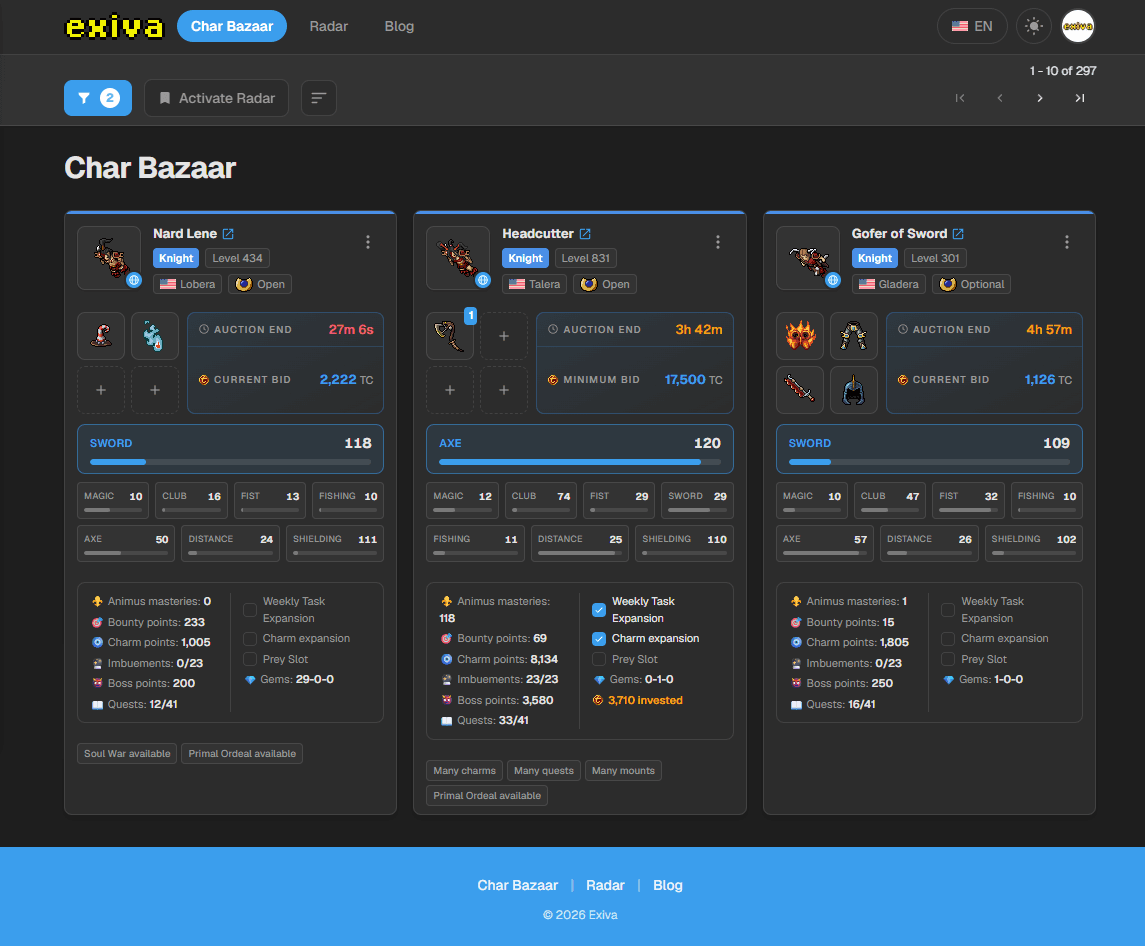
- 1Go to Char Bazaar and apply the filters you want to monitor (server, vocation, level, price, etc.).
- 2Click Activate Radar in the toolbar above the auction list.
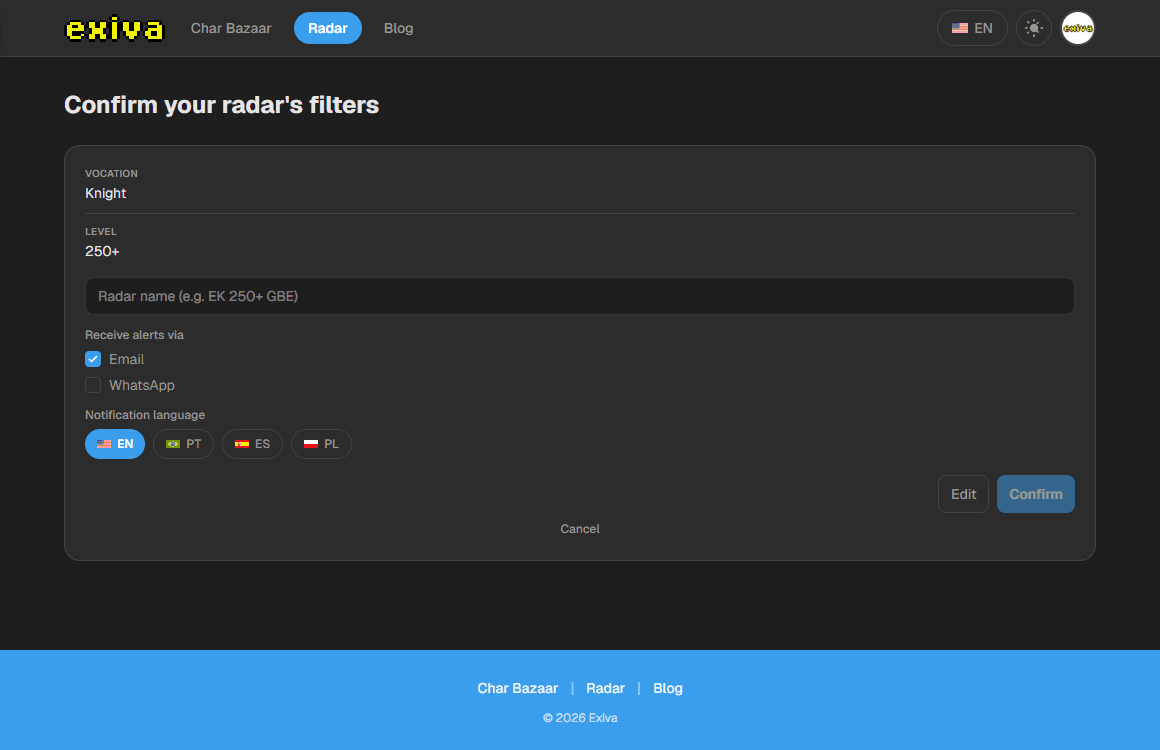
- 3Review the filter summary, give your radar a name and choose which channels you want to be notified through (email and/or WhatsApp).
- 4Pick the notification language and click Confirm.
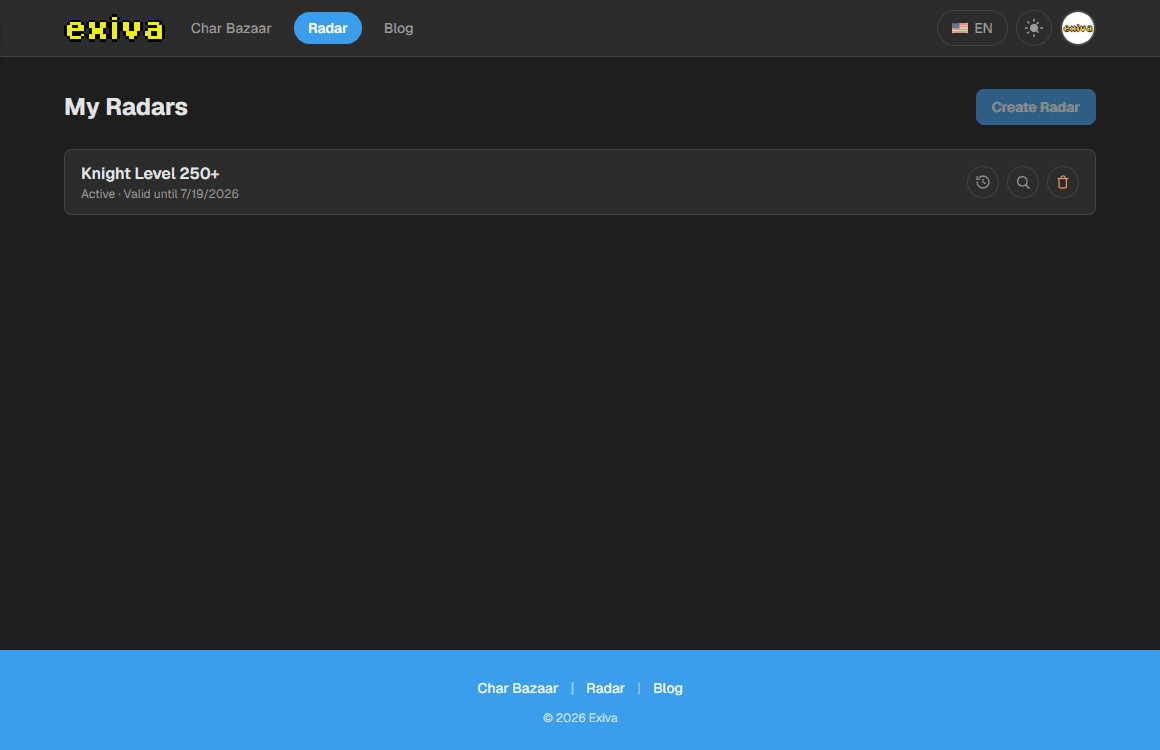
Done! Your radar shows up under My Radars, and you'll be notified automatically as soon as a matching character appears on the bazaar.
Frequently asked questions
How many radars can I have active at once?
Each account has a limit on simultaneous active radars. If you hit the limit, the screen warns you before you try to create a new one — cancel an existing radar to free up a slot.
How do I cancel a radar?
On the My Radars page, click the trash icon next to the radar you want to cancel.
Can I get notifications via WhatsApp?
Yes, but you need to verify your WhatsApp number first — the radar confirmation screen walks you through that as soon as you check the option.